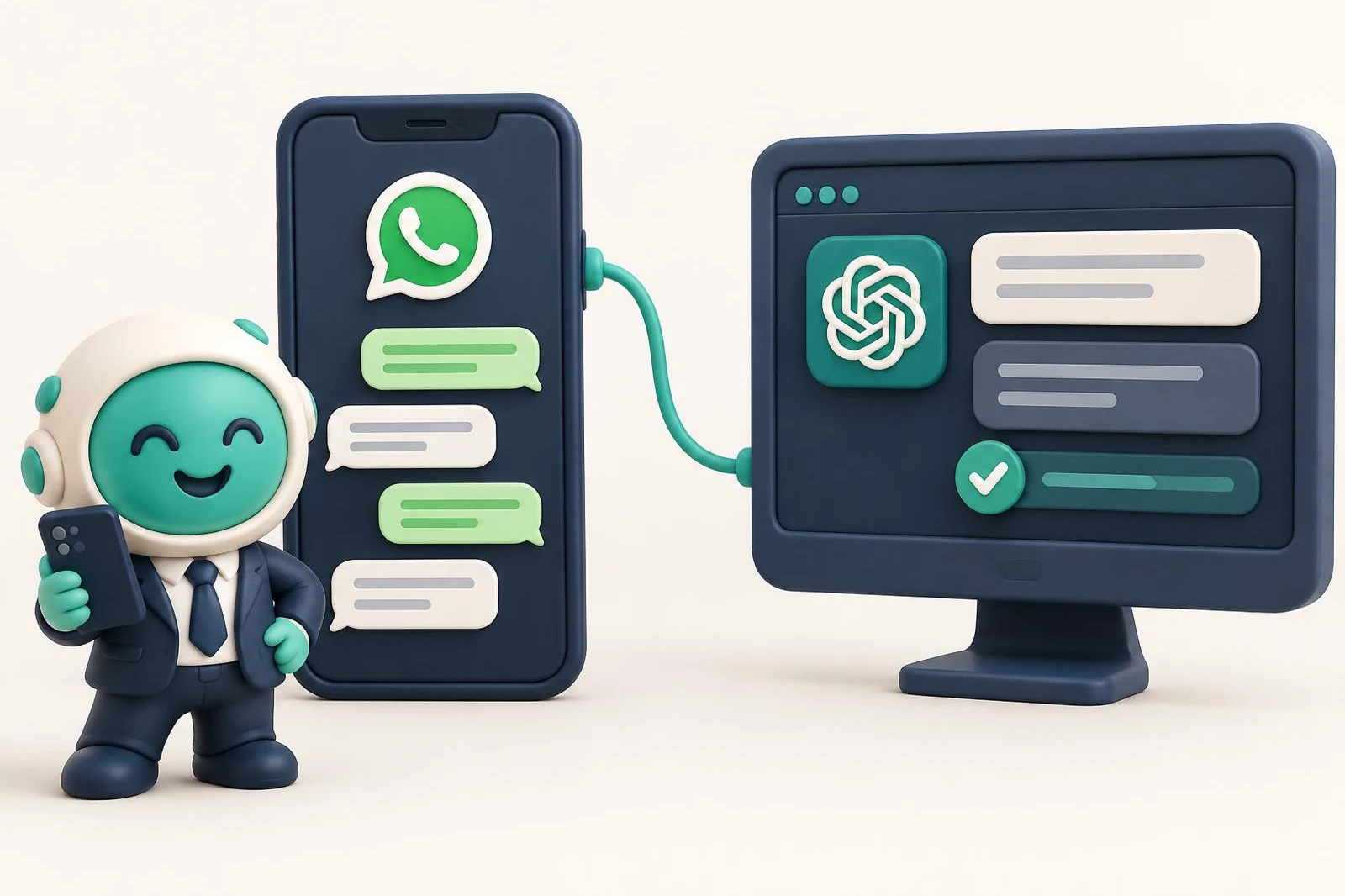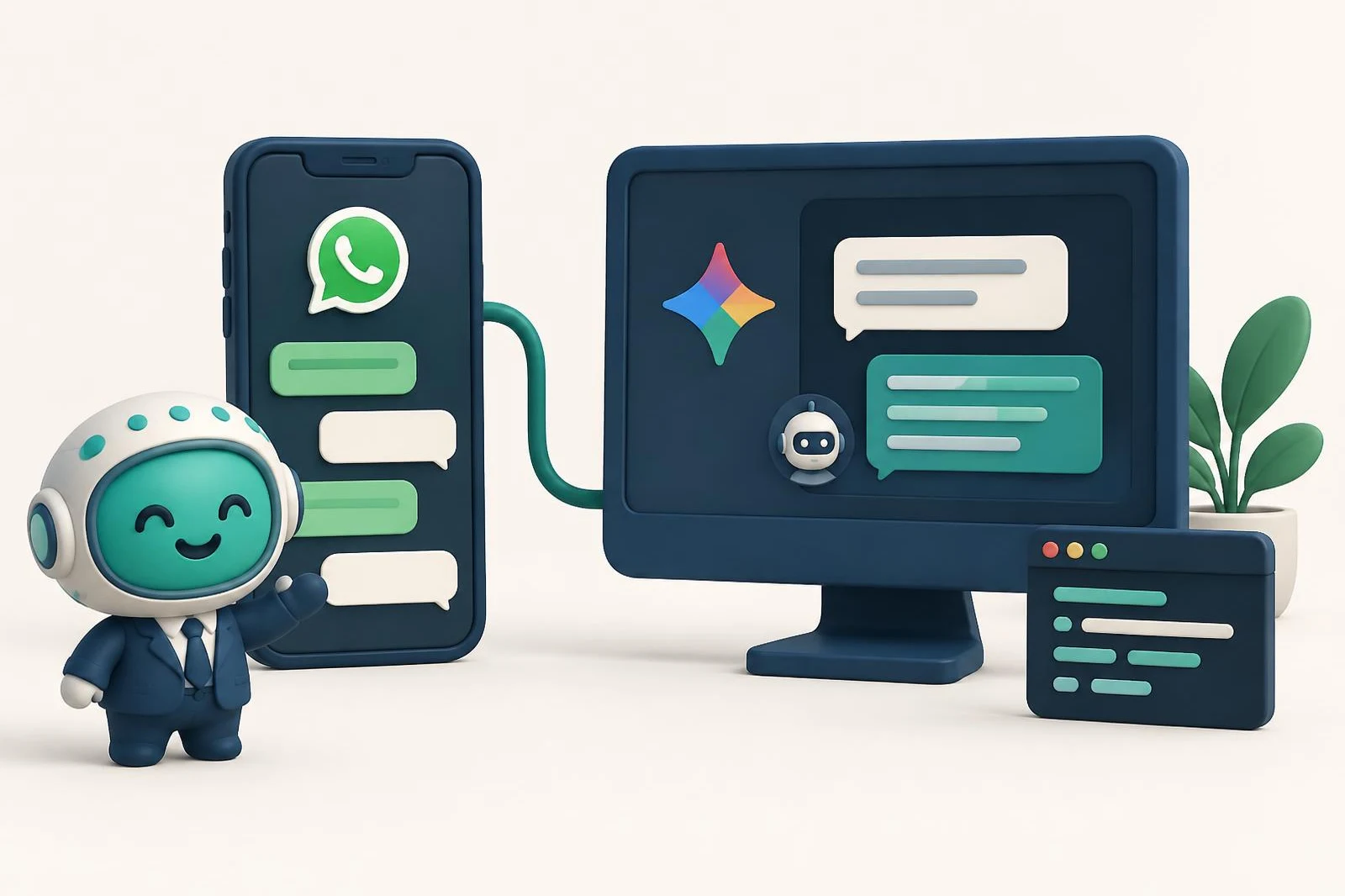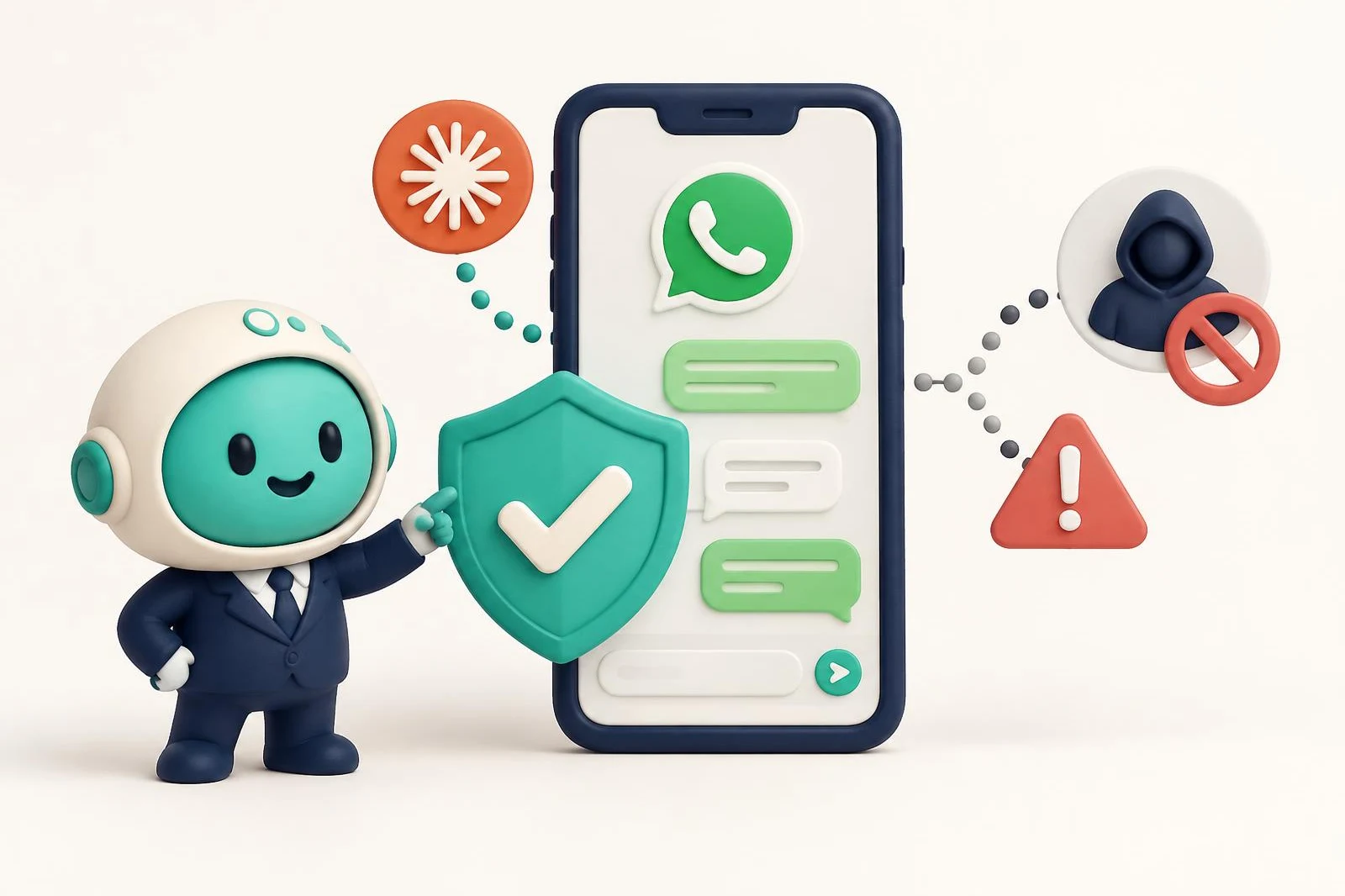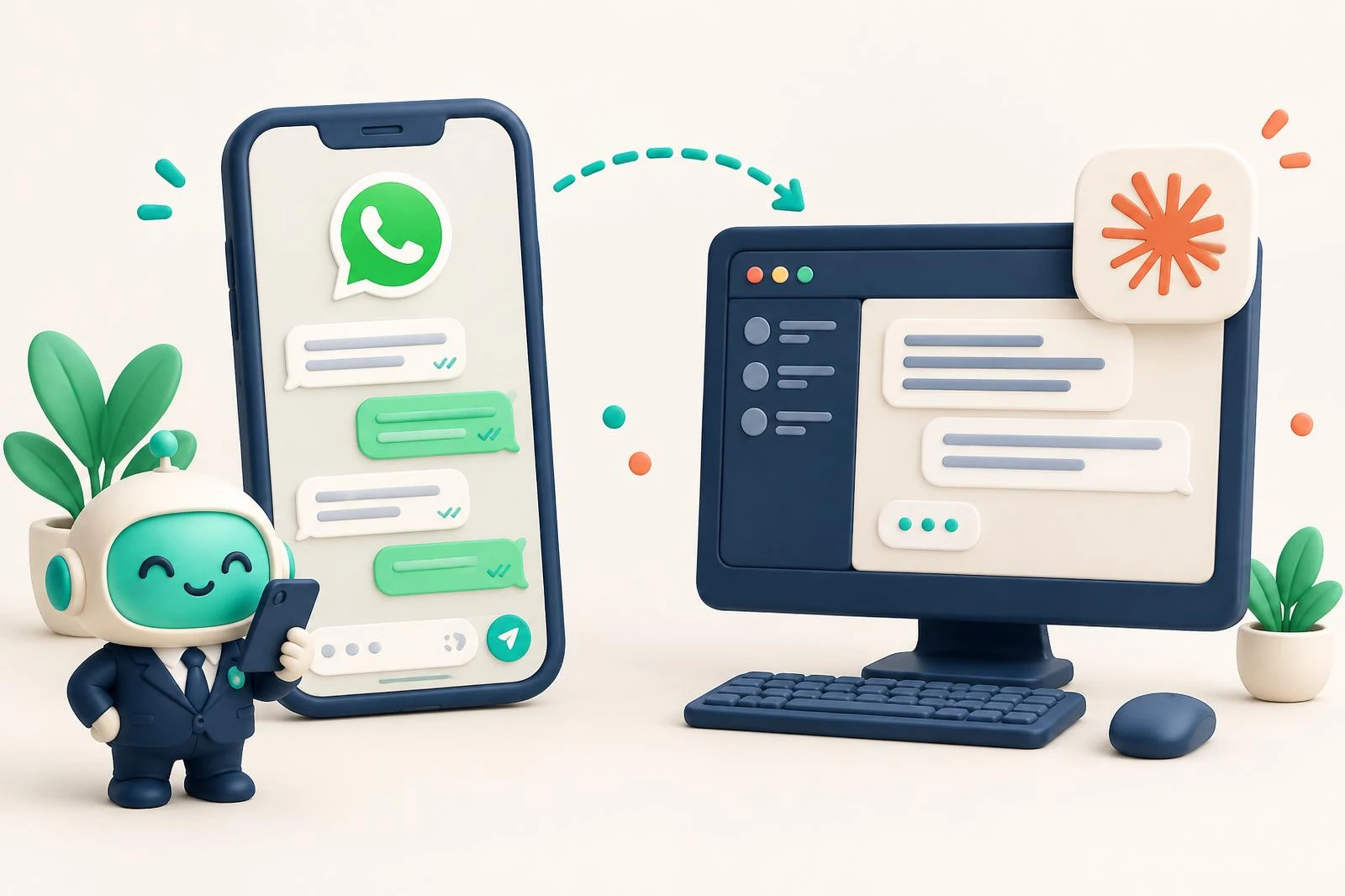
To connect WhatsApp to Claude, you add an MCP connector that has access to your WhatsApp number. With Chatty, that takes three steps: create a free Chatty account with Google, add the Chatty connector to Claude (Customize → Connectors → Add custom connector, address https://asistente.letschatty.com/mcp), and link your number through Meta's official sign-up form. Your number keeps working in the WhatsApp Business app, and your last 6 months of chats come in.
Once it's connected, you can open Claude and ask who is waiting for an answer, what a conversation was about, or which customers asked for a price and never heard back. Claude answers from your real chats, not from an export someone had to make by hand.
What a WhatsApp MCP connector is
MCP (Model Context Protocol) is the standard Claude uses to work with other applications. A WhatsApp MCP connector gives Claude a set of tools, such as reading a chat, listing the conversations that still need a reply, or drafting a message, and Claude uses them when you ask for something in the conversation.
What matters most is what sits behind the connector. Chatty connects your number through the official WhatsApp Business API as a Meta Business Partner. It doesn't run a WhatsApp Web session or an automated phone. If you're weighing that against other options, we compare them in WhatsApp and Claude: official API vs. WhatsApp Web.
What you need before you start
- A Google account. You sign in to Chatty with Google, so there's no new password to create.
- Claude. claude.ai in the browser, the desktop app, or Claude Code in the terminal.
- Your business number in the WhatsApp Business app, with the phone nearby: Meta sends a verification code.
- A computer. Linking the number happens in a desktop browser, not on the phone.
Step 1: Create your Chatty account
Go to whatsapp.letschatty.com/en and click Start your free trial. It takes you straight to Google: pick your account and your Chatty account is created.
The trial lasts 15 days, it's free and it doesn't ask for a credit card. If it isn't for you, there's nothing to cancel. One thing to know up front: Chatty's own screens are in Spanish today. You'll spend most of your time inside Claude, where you can write in English.
Step 2: Add the Chatty connector to Claude
Claude doesn't connect to WhatsApp directly. It connects to your Chatty account, and Chatty connects to your number. How you add the connector depends on where you use Claude.
On claude.ai or the Claude desktop app
There's nothing to install and no API key to copy:
- Open Customize, then Connectors, and choose Add custom connector.
- Paste this address in the URL field:
https://asistente.letschatty.com/mcp - The Chatty sign-in opens. Sign in with the same Google account and you're done.
In Claude Code
Run this in a terminal. It opens the browser so you can sign in:
claude mcp add -s user --transport http asistente https://asistente.letschatty.com/mcpThen claude mcp list tells you whether the connector responds.
Two things people forget: start a new chat after connecting (connectors load when a conversation starts), and the company is fixed per connection. If you have access to more than one, Chatty asks which one when you sign in.
The connector is a standard MCP server, so the same address also works in other apps that support remote MCP servers, such as ChatGPT, Codex, Cursor, VS Code with GitHub Copilot and Gemini CLI. The exact steps for each are on the connector page (in Spanish). We test it most thoroughly with Claude.
Step 3: Link your WhatsApp with Meta's official form
With the connector in place, the shortest path is to ask Claude. Write "Help me get started with Chatty" and it walks you through it. If you'd rather do it yourself, the connect button is in your Chatty account.
Either way, Meta's form opens. It's Meta's form, not ours: Chatty never sees your Facebook password. Inside it, in this order:
- Choose your existing WhatsApp Business account.
- Choose or create a business portfolio.
- Enter your phone number.
- Type the verification code you receive.
- Share your chat history.
The last one matters most. Leave the option to share your WhatsApp chat history checked: that's how your last 6 months of chats come in, so Claude can work from day one. Without it, the account starts empty and Claude has nothing to work with until new messages arrive.
When you finish the form, the connection can take up to a minute. Wait on that screen and don't reload the page.
If Meta says the number already belongs to another portfolio, it almost always means it's still linked to Instagram. Remove it there, connect again, and link it back once the connection is done.
What changes on your phone: nothing
You keep using the WhatsApp Business app on your phone, like today. This is called coexistence: the same number is connected to the API and still works in the app. Whatever you answer from the phone, Claude sees too.
What to ask first
No commands, just plain language:
- What do I have pending?
- Who did I never reply to? Group them by what they asked.
- Show me the ones who asked for a price and got no answer.
- What was the chat with Lucía about before I reply?
And nothing goes out without your yes. Claude drafts the message and sends it only when you tell it to, and every message sent is logged in the chat.
Pricing
After the 15-day free trial, you pick a plan:
- Conector, US$ 50 per month: Claude reads your WhatsApp. Your chats and their history, the follow-up queue, and counting and grouping contacts. It doesn't reply or send messages.
- Conector Plus, US$ 80 per month: it also replies to chats with your approval, tags, moves chats through your pipeline, sends templates, and drafts lists and campaigns.
- Annual, US$ 299 per year, paid once: everything in Plus, for the year.
The full list of what Claude can do with your account is on the Chatty connector page.
Frequently asked questions
Will Claude message my customers without asking me?
No. On the Conector plan, Claude only reads. On Plus it can reply, but it drafts the message and sends it only when you tell it to.
Do I lose the WhatsApp Business app?
No. Your number stays in coexistence: connected to the official API and still working in the WhatsApp Business app on your phone.
Do I need to know how to code?
No. On claude.ai it's three steps under Customize, and Claude can guide you through the rest in a conversation. The terminal is optional, for people who already use Claude Code.
Is this an official WhatsApp connection?
Yes. Chatty connects your number through the official WhatsApp Business API, using Meta's own sign-up form, and Chatty is a Meta Business Partner. It isn't a WhatsApp Web session.
Comparing options before you decide? Read WhatsApp and Claude: official API vs. WhatsApp Web.
Frequently asked questions
Will Claude message my customers without asking me?
No. On the Conector plan, Claude only reads. On Plus it can reply, but it drafts the message and sends it only when you tell it to.
Do I lose the WhatsApp Business app?
No. Your number stays in coexistence: connected to the official API and still working in the WhatsApp Business app on your phone.
Do I need to know how to code?
No. On claude.ai it's three steps under Customize, and Claude can guide you through the rest in a conversation. The terminal is optional, for people who already use Claude Code.
Is this an official WhatsApp connection?
Yes. Chatty connects your number through the official WhatsApp Business API, using Meta's own sign-up form, and Chatty is a Meta Business Partner. It isn't a WhatsApp Web session.